
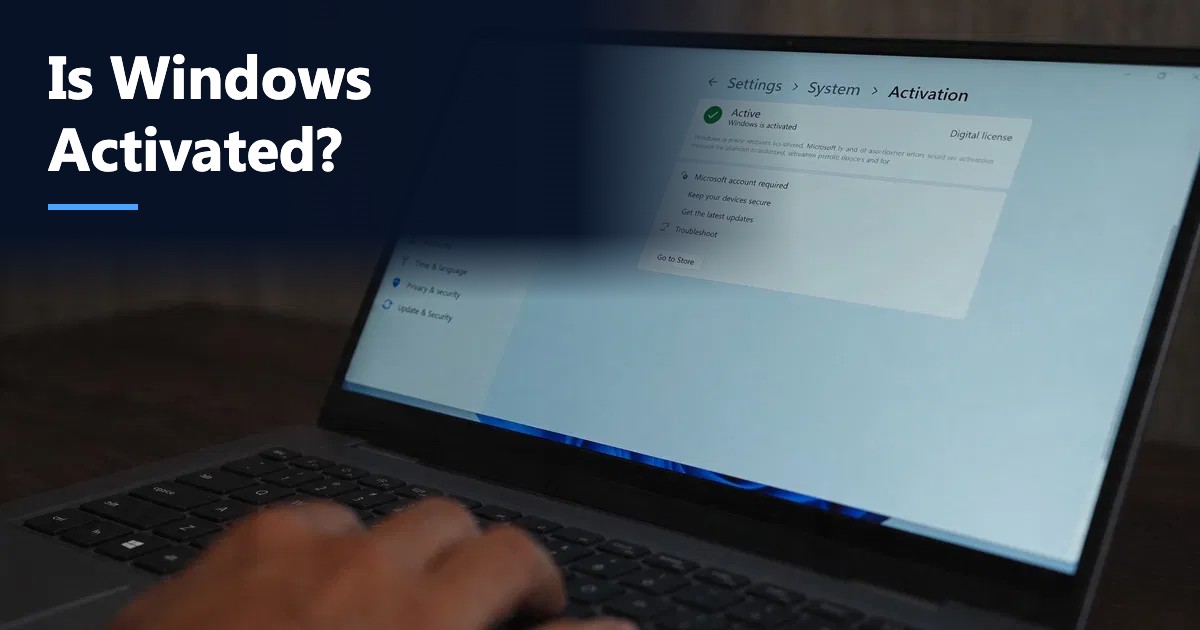
Short answer: On Windows 11, open Settings > System > Activation. “Active” next to Activation state means Windows is activated. For more detail, open Command Prompt and run slmgr /xpr (shows whether activation is permanent) or slmgr /dli (shows the edition, license channel such as Retail, OEM or Volume, and the last five characters of the key). On Windows 10 the same page is under Settings > Update & Security > Activation.
Checking activation takes less than a minute, but knowing what the result means is what actually helps: whether the license is permanent, what type of key you have, and whether it is linked to your Microsoft account so it survives a hardware change. This guide covers five methods, from the simplest click to the commands IT administrators use, and explains how to read each result.
Method 1: Settings (the quickest way)
Windows 11
- Press Win + I to open Settings.
- Go to System > Activation.
- Look at Activation state:
- Active means Windows is activated.
- Not active means it is not, and Windows shows the reason or an error code.
- Expand the section to see whether the message says “Windows is activated with a digital license linked to your Microsoft account”, “with a digital license” or “with a product key”.
Windows 10
- Open Settings > Update & Security > Activation.
- The Windows section shows the edition and the activation message.
The edition shown (Home, Pro, Pro for Workstations, Education, Enterprise) must match the license you bought.
Method 2: slmgr commands (the most detailed)
slmgr is Microsoft’s Software Licensing Management Tool, built into every version of Windows. Open Command Prompt or Terminal (administrator rights are recommended) and run any of these:
| Command | What it shows | When to use it |
|---|---|---|
| slmgr /xpr | Whether the machine is permanently activated or when activation expires | Quick yes/no check |
| slmgr /dli | Edition, license channel, partial key, license status | To see Retail vs OEM vs Volume |
| slmgr /dlv | Everything in /dli plus activation ID, installation ID and remaining rearm count | Detailed troubleshooting |
| slmgr /ato | Forces an online activation attempt | After entering a key or fixing connectivity |
| slmgr /ipk XXXXX-… | Installs a new product key | Changing the key from the command line |
Microsoft documents every option in its slmgr reference.
How to read slmgr /dli output
A small window opens with lines such as:
- Name: “Windows(R), Professional edition” confirms the edition.
- Description: “RETAIL channel”, “OEM_DM channel” or “VOLUME_MAK channel” tells you the license type.
- Partial Product Key: the last five characters, useful for matching against your purchase email.
- License Status: “Licensed” means activated. “Notification”, “Initial grace period” or “Unlicensed” mean it is not.
If the channel is VOLUME_KMSCLIENT, the PC activates against an organization’s KMS server and must reconnect to it periodically. A home PC should not normally show that channel.
Method 3: PowerShell
PowerShell is handy for scripts or remote checks. Run:
Get-CimInstance SoftwareLicensingProduct -Filter “PartialProductKey IS NOT NULL” | Select-Object Name, LicenseStatus
A LicenseStatus of 1 means licensed (activated). Other values indicate grace periods or an unlicensed state. IT teams use this across many PCs at once.
Method 4: Visual signs
An unactivated Windows 11 PC shows:
- An “Activate Windows” watermark in the bottom-right corner of the screen
- Personalization settings greyed out (wallpaper, colors, themes)
- A notification in Settings asking you to activate
These signs are useful, but they can take time to appear, so confirm with Method 1 or 2.
Method 5: Check that the license is linked to your Microsoft account
Linking matters because it lets you reactivate after replacing the motherboard or other major hardware.
- Sign in to Windows with your Microsoft account (Settings > Accounts > Your info).
- Go back to Settings > System > Activation.
- The message should read “Windows is activated with a digital license linked to your Microsoft account.”
- If it does not, sign in with the account once while activated, and Windows links it automatically.
What the activation messages mean
| Message in Settings | Meaning | Action |
|---|---|---|
| Windows is activated with a digital license linked to your Microsoft account | Activated and recoverable after hardware changes | None |
| Windows is activated with a digital license | Activated, not linked | Sign in with a Microsoft account to link |
| Windows is activated using your organization’s activation service | Activated by a company KMS server | Normal for work PCs only |
| Windows is not activated | No valid license | Enter a valid key or troubleshoot |
| Windows reported that no product key was found on your device. Error code: 0xC004F213 | No key in firmware or license not found after hardware change | See our 0xc004f213 fix guide |
Checking activation for Microsoft Office
Office has its own activation, separate from Windows:
- Open Word or Excel.
- Go to File > Account.
- Under Product Information, you should see “Product Activated” and the product name, such as “Microsoft Office LTSC Professional Plus 2024”.
For volume-licensed Office, administrators can run cscript ospp.vbs /dstatus from the Office installation folder to see the license status and partial key. Our guide on activating Office with a product key or Microsoft account covers the different activation methods.
How to activate if the check shows “Not active”
- Confirm the edition installed matches your license (a Pro key will not activate Home).
- Go to Settings > System > Activation > Change product key and enter your 25-character key.
- If you changed hardware, select Troubleshoot and choose I changed hardware on this device recently, then sign in with the Microsoft account the license was linked to.
- If you see an error code, note it and search Microsoft’s Windows activation error help for that code.
- Contact the seller with the slmgr /dli output if the key still fails.
Why you should check activation after buying a key
A key that activates today can be blocked later if it was sold improperly. Checking the license channel with slmgr /dli right after purchase tells you whether you received the type the seller described. If you bought Retail and see OEM or Volume, raise it with the seller while you can still claim a replacement or refund. Our guide to cheap Windows 11 keys explains what to look for.
Checking activation on many PCs at once
Small businesses and IT teams often need to confirm activation across a whole office. Practical options:
- PowerShell remoting: run the Get-CimInstance query above against a list of computer names with Invoke-Command, and export the results to a CSV file.
- slmgr against a remote machine: slmgr accepts a computer name, user name and password as the first parameters (for example slmgr PC-07 admin password /dli), which is useful for a handful of devices.
- Microsoft Intune: the device inventory and compliance reports show Windows edition and license information for enrolled devices.
- Volume Activation Management Tool (VAMT): Microsoft’s free tool for organizations that manage MAK and KMS activations across many PCs.
Record the result for each machine alongside its purchase record, so you can answer license questions quickly during an audit or insurance review.
Activation and major hardware changes
A Windows license is bound to the hardware it activated on. Replacing a hard drive or adding RAM does not usually affect activation, but replacing the motherboard usually does, because Windows treats it as a new device. What happens next depends on the license type:
| License type | After a motherboard replacement |
|---|---|
| Retail, linked to a Microsoft account | Use the Activation troubleshooter and choose “I changed hardware on this device recently” |
| Retail, not linked | Re-enter the product key; contact the seller if it is refused |
| OEM | Licensed to the original device; a new license is normally needed |
| Volume (KMS/MAK) | Handled by your organization’s IT team |
This is the main practical difference between retail and OEM keys, and the reason linking your license to a Microsoft account is worth the extra minute.
What “Windows is activated” does not tell you
The Settings page confirms activation but not the license type, and not whether the key was sold in line with Microsoft’s terms. That is why slmgr /dli matters: it shows the channel. Combine it with your invoice and the seller’s stated license type to be confident you are properly licensed.
Common mistakes
- Running slmgr without administrator rights and getting “Access denied” for /ato or /ipk.
- Confusing Windows and Office activation. They are separate licenses.
- Assuming the watermark appears immediately. Use Settings or slmgr to be sure.
- Not linking the license to a Microsoft account before replacing hardware.
- Using unofficial “activation checker” tools. The built-in tools are all you need.
Final takeaway
Settings tells you in seconds whether Windows is activated; slmgr /dli tells you what kind of license you actually have. Run both after any new installation or key purchase, link the license to your Microsoft account, and keep a note of the partial key with your receipt.
Frequently asked questions
How do I check if Windows 11 is activated?
Open Settings, go to System > Activation and look at Activation state. Active means Windows is activated. You can also run slmgr /xpr in Command Prompt to see whether the machine is permanently activated.
What does slmgr /dli show?
slmgr /dli displays the Windows edition, the license channel such as Retail, OEM or Volume, the last five characters of the product key and the license status.
How do I know if my Windows license is retail or OEM?
Run slmgr /dli. The Description line shows RETAIL channel for retail licenses or OEM channel for OEM licenses. Volume licenses show VOLUME_MAK or VOLUME_KMSCLIENT.
What happens if Windows 11 is not activated?
Windows 11 keeps working but shows an Activate Windows watermark, restricts personalization settings and displays reminders. You also are not properly licensed until you activate.
How do I check if Office is activated?
Open any Office app, go to File > Account and check Product Information. It should say Product Activated along with the Office version name.