
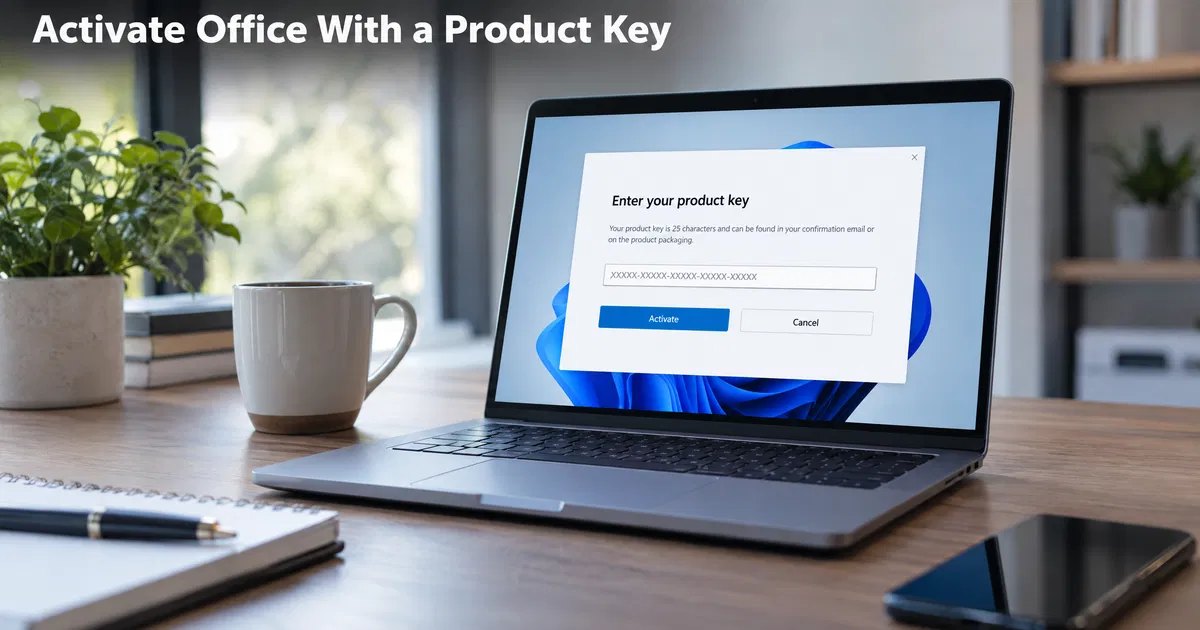
Short answer: How you activate Office depends on the license type. Retail keys for Office 2021/2024 Home & Student, Home & Business and Professional are redeemed once at microsoft365.com/setup, which binds the license to your Microsoft account; you then install from your account and activation happens when you sign in. Volume (LTSC) keys, such as Office LTSC Professional Plus 2024, are entered in File > Account > Change Product Key or with the Office Deployment Tool, then activated online or by phone. Microsoft 365 subscriptions activate simply by signing in.
Office activation confuses buyers because the same-looking 25-character key can behave in completely different ways. Some keys must be linked to a Microsoft account and can never be used again; others are entered directly in an installed app. This guide explains each license type, the exact steps to activate it, what “bind” keys are, and how to fix common activation errors.
Know your Office license type first
| License type | Examples | How it activates | Linked to Microsoft account? |
|---|---|---|---|
| Retail (account-bound) | Office Home & Student 2024, Home & Business 2024, Professional 2021 | Redeem key at microsoft365.com/setup, install from account, sign in | Yes, permanently |
| Volume (LTSC) | Office LTSC Professional Plus 2024, Office LTSC Standard 2021 | Enter key in the app or deployment tool; activate online or by phone | No |
| Subscription | Microsoft 365 Personal, Family, Business | Sign in with the subscribed account | Yes, while subscribed |
| OEM / preinstalled | Office that came with a new PC | Claim during first launch, links to account | Yes |
The product page or your invoice should state which type you bought. If you are not sure, check whether the instructions mention “redeem” (retail, account-bound) or “change product key” (volume).
What is a “bind” Office key?
“Bind” is the term resellers use for retail keys that must be linked (bound) to a Microsoft account during activation. When you redeem one:
- The key is attached to that Microsoft account permanently.
- You can reinstall Office later by signing in to that account and downloading it again, without the key.
- The key cannot be redeemed again on another account.
- One-PC licenses allow one active installation at a time; you can deactivate an old PC and install on a new one from the account.
This makes bind keys convenient for individuals: you never lose the license as long as you keep access to the account. Vaneyo’s Office 2021 Professional Plus (bind) and Office 2016 Professional Plus bind key work this way.
How to activate a retail (account-bound) Office key
- Uninstall other Office versions from Settings > Apps to avoid conflicts.
- Go to microsoft365.com/setup (the address on your purchase instructions).
- Sign in with the Microsoft account you want the license linked to, or create one.
- Enter the 25-character product key and choose your country or region and language.
- Select Next. The license appears in your account under Services & subscriptions.
- Select Install and run the downloaded installer.
- Open Word, accept the license agreement and sign in with the same account if prompted.
- Confirm under File > Account that it shows Product Activated.
How to activate a volume (LTSC) Office key
Volume editions such as Office LTSC Professional Plus 2024 are installed with the matching LTSC installer and do not link to a Microsoft account.
Option 1: Enter the key in an Office app
- Install the correct Office LTSC version (our Office LTSC 2024 installation guide walks through the Office Deployment Tool).
- Open Word and go to File > Account.
- Select Change Product Key and enter the key.
- Office activates online. Confirm Product Activated is shown.
Option 2: Command line with ospp.vbs
Open Command Prompt as administrator, go to the Office folder (usually C:\Program Files\Microsoft Office\Office16) and run:
cscript ospp.vbs /inpkey:XXXXX-XXXXX-XXXXX-XXXXX-XXXXX
cscript ospp.vbs /act
cscript ospp.vbs /dstatus
The last command shows the license name, status and the last five characters of the key.
Option 3: Phone activation (confirmation ID)
If online activation fails, Office offers telephone activation: you read an installation ID and receive a confirmation ID. Our guide Get a confirmation ID and activate your products explains each step.
How to activate Microsoft 365
- Install Microsoft 365 Apps from microsoft365.com after signing in.
- Open any app and sign in with the subscribed account.
- Activation is automatic while the subscription is active.
Common Office activation errors and fixes
| Symptom | Likely cause | Fix |
|---|---|---|
| “Unlicensed Product” in the title bar | Key not entered, or license not found for the signed-in account | Sign in with the account that owns the license, or enter the key in File > Account |
| “This product key has already been used” | Retail key was redeemed earlier, possibly on another account | Sign in to the account that redeemed it; contact the seller if it was not you |
| “We can’t find any Office products” | Wrong Microsoft account | Sign out and sign in with the account linked to the license |
| Key accepted but apps still unlicensed | Mixed versions (for example 2021 and 2024) installed | Uninstall all Office versions and reinstall one |
| Volume key rejected in Microsoft 365 apps | Key type does not match installer | Install the LTSC version that matches the volume key |
| Activation wizard keeps appearing | Leftover licenses from older installs | Remove old Office licenses with ospp.vbs /unpkey and reactivate |
How to move Office to a new PC
- Retail account-bound licenses: sign in to the account, open Services & subscriptions or Install Office, and install on the new PC. Sign out of Office on the old PC and uninstall it so the license count stays within your entitlement.
- Volume licenses: uninstall from the old PC (ospp.vbs /unpkey removes the key), then install and activate on the new PC, within the license terms.
- Microsoft 365: manage devices from your account page; sign out of devices you no longer use.
Windows activation is separate
Office and Windows have independent licenses. If Windows shows an activation error, see how to check if Windows is activated and our 0xc004f213 fix guide.
Click-to-Run vs MSI installations
Modern Office versions (2019, 2021, 2024 and Microsoft 365) use Click-to-Run, a streaming installer that keeps Office updated in the background. Office 2016 was available in both Click-to-Run and older MSI formats. This matters for activation because:
- A Click-to-Run retail installer expects a retail or account-bound license.
- A Click-to-Run volume (LTSC) installer, built with the Office Deployment Tool, expects a volume key.
- MSI-based Office 2016 Professional Plus uses volume activation through ospp.vbs.
If a key is “valid” but refuses to activate, a mismatch between the installer type and the key type is the most common cause. Uninstall, download the installer that matches your license and try again.
Activating Office for several users in a small business
For five to fifty users, keep a simple process:
- Decide on one Office version and edition for everyone, so documents and add-ins behave the same.
- For volume LTSC licenses, create one Office Deployment Tool configuration file with the product ID, language and key, and install it on each PC in the same way.
- For account-bound retail licenses, give each user their own Microsoft account and redeem one key per account.
- Record which key or account is used on which PC, together with the invoice.
- After installation, check File > Account on every PC, or run cscript ospp.vbs /dstatus for volume installs.
This keeps licensing clear when staff join or leave and makes an audit straightforward.
Common mistakes
- Redeeming a retail key with the wrong Microsoft account. It cannot be moved to another account afterward.
- Installing Microsoft 365 apps and entering an LTSC volume key. Use the matching LTSC installer.
- Keeping older Office versions installed during activation.
- Losing access to the Microsoft account that holds an account-bound license. Add recovery methods to the account.
- Running “KMS activators”. They are not a license and often contain malware.
Final takeaway
Identify your license type before you start: retail keys bind to your Microsoft account through microsoft365.com/setup, volume LTSC keys are entered directly in the app, and Microsoft 365 just needs a sign-in. Remove old Office versions first and confirm Product Activated under File > Account when you finish.
Frequently asked questions
How do I activate Office with a product key?
For retail Office 2021 or 2024 keys, redeem the key at microsoft365.com/setup while signed in to your Microsoft account, then install Office from the account. For volume LTSC keys, install the LTSC version and enter the key in File > Account > Change Product Key.
What does a bind key mean for Office?
A bind key is a retail Office key that links permanently to the Microsoft account used to redeem it. You reinstall Office by signing in to that account, and the key cannot be redeemed again on a different account.
Can I activate Office without a Microsoft account?
Yes, with volume-licensed Office LTSC editions. You enter the key in the app or with ospp.vbs and activate online or by phone. Retail Office 2021 and 2024 keys require a Microsoft account.
How do I check if Office is activated?
Open Word or Excel and go to File > Account. Product Information should show Product Activated and the name of your Office edition.
Why does Office say Unlicensed Product?
Usually because you are signed in with a different Microsoft account than the one that owns the license, the key was never entered, or several Office versions are installed. Sign in with the right account or reinstall a single version and enter the key.