
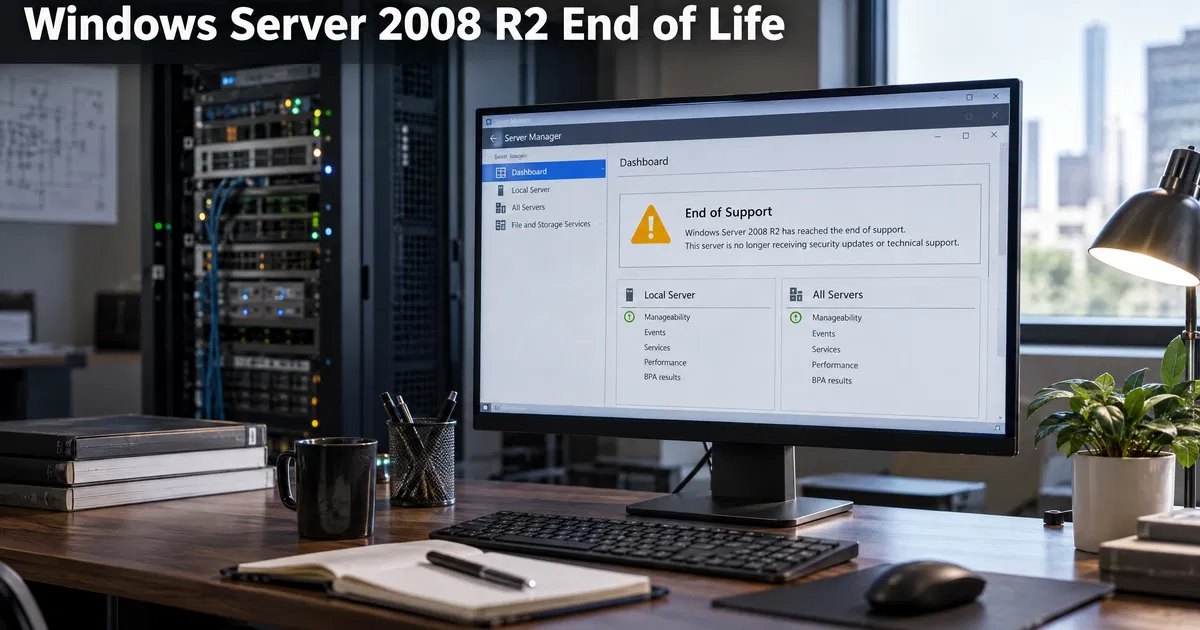
Short answer: Windows Server 2008 R2 reached end of extended support on January 14, 2020. Paid Extended Security Updates (ESU) ran until January 10, 2023, and a final fourth year for servers hosted in Azure ended on January 9, 2024. Since then there have been no security updates of any kind. If you still run 2008 R2, isolate it now and migrate to Windows Server 2022 or 2025, usually by moving roles to a new server rather than upgrading in place.
Windows Server 2008 R2 still powers forgotten file servers, legacy line-of-business applications and old domain controllers in many organizations. This guide explains exactly where its support ended, what the risks are in 2026, how to keep an unavoidable 2008 R2 server as safe as possible, and the practical migration paths to a supported Windows Server.
Windows Server 2008 R2 end-of-life timeline
| Milestone | Date |
|---|---|
| Release (RTM) | October 2009 |
| Mainstream support ended | January 13, 2015 |
| Extended support ended | January 14, 2020 |
| ESU year 3 ended (on-premises) | January 10, 2023 |
| ESU year 4 ended (Azure only) | January 9, 2024 |
| Security updates today | None |
Dates are from Microsoft’s Windows Server 2008 R2 lifecycle page. SQL Server 2008 and 2008 R2 followed a similar path, with extended support ending in July 2019.
What running Windows Server 2008 R2 in 2026 means
- No security patches for newly discovered vulnerabilities, including remotely exploitable ones.
- Outdated protocols: SMBv1, older TLS versions and legacy authentication are common on 2008 R2 builds, and attackers specifically scan for them.
- Unsupported software: current versions of antivirus, backup agents, browsers and most applications no longer support 2008 R2.
- Compliance problems: PCI DSS, HIPAA risk assessments and cyber-insurance questionnaires expect supported, patched operating systems.
- Hardware age: servers bought for 2008 R2 are usually 12 to 15 years old, so hardware failure is a real risk.
If you must keep a 2008 R2 server for now
Sometimes a legacy application cannot move yet. Reduce exposure while you plan:
- Remove internet access. Block inbound and outbound internet traffic at the firewall except what is strictly needed.
- Segment the network. Place the server in its own VLAN and allow only the specific ports and clients the application requires.
- Disable SMBv1 and old protocols where the application allows it.
- Restrict administrator logins and remove unused accounts and services.
- Back up and test restores, ideally as an image you can restore to a VM if the hardware fails.
- Virtualize it on a supported hypervisor to escape aging hardware.
- Document a retirement date and get management sign-off on the risk.
Migration paths to a supported Windows Server
Path A: Migrate roles to a new server (recommended)
Build a new server with Windows Server 2022 or 2025, then move services across:
- File shares: use Windows Admin Center’s Storage Migration Service, which inventories 2008 R2 file servers, copies data with permissions and can take over the old server’s name and IP.
- Active Directory: add a new domain controller, transfer FSMO roles, then demote the 2008 R2 DC. Raise the domain and forest functional levels once old DCs are gone.
- DHCP and DNS: export and import DHCP scopes; DNS moves with Active Directory-integrated zones.
- Applications: reinstall the vendor’s latest supported version on the new server and move its data.
Path B: Step-by-step in-place upgrade (rarely worth it)
Windows Server supports in-place upgrades only across a limited number of versions. From 2008 R2 you would need to upgrade to Windows Server 2012 R2 first, then to 2016 or 2019, then to 2022. Each step requires its own license and testing, and old hardware often lacks drivers for newer versions. Most administrators choose Path A.
Path C: Move the workload to the cloud
File shares can move to SharePoint and OneDrive or Azure Files; email to Exchange Online; legacy apps to Azure VMs running a supported Windows Server.
Which Windows Server version should replace 2008 R2?
| Target | Support ends | Notes |
|---|---|---|
| Windows Server 2019 | January 9, 2029 | Fine for matching existing environments |
| Windows Server 2022 | October 14, 2031 | Mature, widely supported by vendors |
| Windows Server 2025 | Longest support window | Best for new deployments when your software supports it |
Compare editions in Windows Server 2022 Standard vs Datacenter and Windows Server 2025 Standard vs Datacenter. Small offices should also read Windows Server 2019 Essentials vs Standard.
About Windows Server 2008 R2 licenses today
Vaneyo lists Windows Server 2008 R2 Standard and Datacenter licenses. Because the product receives no security updates, these licenses are appropriate only for isolated legacy systems, lab environments that must reproduce an old setup, or licensing a virtual machine restored from an existing 2008 R2 server during migration. For anything connected to the internet, use a supported version.
Migration checklist
- List every 2008 R2 server, its roles, applications and who owns them.
- Ask application vendors for the newest supported version and its Windows Server requirements.
- Check whether 32-bit or 16-bit components exist; 16-bit code does not run on 64-bit Windows.
- Plan Active Directory changes: add new DCs before removing old ones.
- Update Group Policy that references old server names or paths.
- Test backups of the old server before any change.
- Decommission the 2008 R2 server, wipe its disks and update documentation.
How to find every Windows Server 2008 R2 machine on your network
Old servers hide well. Ways to find them:
- Active Directory query: in PowerShell on a domain-joined machine with the AD module, run Get-ADComputer -Filter ‘OperatingSystem -like “*2008*”‘ -Properties OperatingSystem, LastLogonDate to list computers reporting a 2008 operating system and when they last logged on.
- Hypervisor inventory: check VMware vCenter or Hyper-V Manager for guest OS types set to Windows Server 2008 R2.
- Network scanning: authorized vulnerability scanners identify the operating system and flag missing patches.
- Backup software reports: backup jobs often list the operating system of each protected machine.
- Ask application owners: finance, HR and production systems are the usual places old servers survive.
Estimating the migration effort
| Server role | Typical effort | Main risk |
|---|---|---|
| File server | Low with Storage Migration Service | Broken mapped drives and shortcuts |
| Domain controller | Low to medium | Functional-level and replication issues if rushed |
| DHCP and DNS | Low | Scope options missed during export |
| Print server | Low to medium | Old 32-bit printer drivers |
| Line-of-business application | Medium to high | Vendor support and data conversion |
| SQL Server 2008 R2 database | Medium | Compatibility level and deprecated features |
For SQL Server databases on the same machine, plan the database move separately; our guide on SQL Server 2019 end of life and upgrades explains assessment tools and compatibility levels that also apply to older versions.
Budgeting the replacement
A replacement usually involves three cost lines: server hardware or cloud compute, Windows Server licenses (core licenses with the 16-core minimum, plus CALs), and migration time. Licensing a modern Windows Server Standard for a single host is often a small part of the total compared with the cost of an outage or a security incident on an unsupported system.
After the migration: verify and clean up
Once the new server is live, confirm that users can open shares and applications, that backups run on the new server, and that monitoring alerts point to it. Then shut down the 2008 R2 machine for a few weeks before deleting it, so you can recover anything that was missed. Finally, remove its computer account from Active Directory, delete old DNS records and update your asset register.
Key terms explained
- Extended support: the final standard support phase, which for Windows Server 2008 R2 ended on January 14, 2020.
- ESU (Extended Security Updates): a paid program that delivered critical patches for up to three more years, and a fourth year in Azure.
- Storage Migration Service: a Windows Admin Center feature that copies file shares and can transfer a server’s identity to a new server.
- Functional level: the Active Directory feature level, raised after old domain controllers are removed.
- SMBv1: an obsolete file-sharing protocol that should be disabled wherever possible.
Common mistakes
- Assuming ESU is still available. It ended in January 2023 (January 2024 in Azure).
- Trying a direct upgrade to Windows Server 2022. It is not a supported path from 2008 R2.
- Leaving a 2008 R2 domain controller online after new DCs are deployed.
- Keeping SMBv1 enabled across the network for one old server.
- Forgetting printers and scanners that save to shares on the old server.
Final takeaway
Windows Server 2008 R2 has had no security updates since January 2024 at the latest. If one is still running, isolate it today and schedule a migration of its roles to Windows Server 2022 or 2025. A clean migration to new hardware is usually faster and safer than a chain of in-place upgrades.
Frequently asked questions
When did Windows Server 2008 R2 reach end of life?
Extended support for Windows Server 2008 R2 ended on January 14, 2020. Paid Extended Security Updates continued until January 10, 2023, and until January 9, 2024 for servers in Azure.
Can I still get security updates for Windows Server 2008 R2?
No. All support, including Extended Security Updates, has ended. Microsoft no longer releases any security updates for Windows Server 2008 R2.
Can I upgrade Windows Server 2008 R2 directly to 2022?
No. An in-place upgrade would have to go through Windows Server 2012 R2 and then 2016 or 2019 first. Most organizations migrate roles to a new server running Windows Server 2022 or 2025 instead.
Is it safe to run Windows Server 2008 R2 offline?
Isolating the server greatly reduces risk, but it does not remove it. Keep it off the internet, segment it on the network, restrict access, back it up and plan its retirement.
What should I replace Windows Server 2008 R2 with?
Windows Server 2022 or 2025 are the usual targets, depending on what your applications support. Cloud services such as Microsoft 365 or Azure can replace file, email and some application workloads.