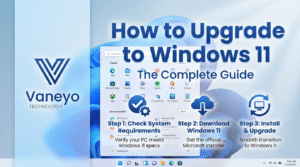
How to Upgrade to Windows 11: The Complete Guide
Whether you're upgrading from Windows 10 or looking to upgrade from Windows 11 Home to Windows 11 Professional, this comprehensive guide will walk you through every step of the process. Windows 11 brings a modern interface, enhanced security features, and improved performance to your PC.
Upgrade to Windows 11 Pro Today!
Transform your Windows 11 Home into the powerful Professional edition with all premium features unlocked.
Lifetime License
Table of Contents
- Check Your PC Compatibility
- How to Upgrade from Windows 10 to Windows 11
- How to Upgrade Windows 11 Home to Professional
- Why Upgrade to Windows 11 Professional?
- Troubleshooting Common Issues
Step 1: Check Your PC Compatibility
Before you upgrade to Windows 11, it's essential to verify that your computer meets the minimum system requirements. Microsoft has set specific hardware requirements for Windows 11 to ensure optimal performance and security.
Windows 11 System Requirements:
- Processor: 1 GHz or faster with 2 or more cores on a compatible 64-bit processor
- RAM: 4 GB or more
- Storage: 64 GB or larger storage device
- System firmware: UEFI, Secure Boot capable
- TPM: Trusted Platform Module (TPM) version 2.0
- Graphics card: DirectX 12 compatible graphics / WDDM 2.x
- Display: >9" with HD Resolution (720p)
1How to Check Compatibility:
- Download the PC Health Check app from Microsoft's official website
- Install and run the application
- Click on "Check now" under "Introducing Windows 11"
- Review the compatibility report
If your PC doesn't meet the requirements, the app will tell you which specific components need upgrading.
Step 2: How to Upgrade from Windows 10 to Windows 11
If you're currently running Windows 10 and want to upgrade to Windows 11, Microsoft offers a free upgrade path for eligible devices. Here's how to do it:
1Method 1: Windows Update (Recommended)
- Click the Start button and open Settings
- Navigate to Update & Security
- Click on Windows Update
- Click Check for updates
- If Windows 11 is available, you'll see "Upgrade to Windows 11" option
- Click Download and install
- Follow the on-screen instructions
- Your PC will restart several times during the installation
2Method 2: Windows 11 Installation Assistant
- Visit the official Microsoft Windows 11 download page
- Download the Windows 11 Installation Assistant
- Run the downloaded file
- Accept the license terms
- Click Accept and install
- Wait for the download and installation to complete
- Restart your computer when prompted
3Method 3: Create Installation Media
- Download the Media Creation Tool from Microsoft
- Run the tool and accept the license terms
- Select "Create installation media (USB flash drive, DVD, or ISO file)"
- Choose your language, edition, and architecture
- Select USB flash drive or ISO file
- Follow the prompts to create the installation media
- Boot from the USB or ISO to install Windows 11
💡 Important: Backup Your Data!
Before performing any major upgrade, always backup your important files, documents, and settings. While the upgrade process preserves your files, it's better to be safe than sorry. Use Windows Backup, an external hard drive, or cloud storage to secure your data.
Step 3: How to Upgrade Windows 11 Home to Windows 11 Professional
If you're already running Windows 11 Home and want to unlock the powerful features of Windows 11 Professional, upgrading is a straightforward process. Windows 11 Pro offers advanced features for business users, remote workers, and power users.
Ready to Upgrade to Windows 11 Pro?
Get your Windows 11 Pro upgrade license from Vaneyo and unlock all professional features instantly!
Buy Windows 11 Pro Upgrade LicenseMethod 1: Upgrade Using a Product Key
The most common and straightforward way to upgrade from Windows 11 Home to Professional is by using a valid product key. Here's the complete process:
1Purchase Your Windows 11 Pro License
First, you'll need a legitimate Windows 11 Professional product key. You can purchase a lifetime license from authorized retailers like Vaneyo at an affordable price.
2Open Windows Settings
- Click the Start button (Windows icon)
- Click on the Settings gear icon (or press
Windows + I) - In Settings, click on System in the left sidebar
- Scroll down and click on Activation
3Enter Your Product Key
- On the Activation page, click Change next to "Upgrade your edition of Windows"
- Alternatively, click Change product key
- A dialog box will appear asking you to enter your product key
- Carefully type in your 25-character Windows 11 Pro product key
- Click Next
4Complete the Upgrade
- Windows will verify your product key
- Once verified, click Start the upgrade
- The system will begin upgrading to Windows 11 Professional
- Your computer will restart several times during this process
- Wait for the upgrade to complete (this may take 10-30 minutes)
- Once finished, you'll be running Windows 11 Pro!
✓ What Happens During the Upgrade?
When you upgrade from Windows 11 Home to Professional, all your files, applications, and settings remain intact. The upgrade only changes the edition of Windows, unlocking additional features without affecting your personal data or installed programs.
Method 2: Upgrade Through Microsoft Store
Alternative Upgrade Path:
- Open the Microsoft Store app
- Search for "Windows 11 Pro"
- Select the upgrade option
- Complete the purchase (if buying directly from Microsoft)
- The upgrade will begin automatically
Note: Purchasing directly from Microsoft Store is typically more expensive. For better value, consider getting your license from authorized retailers like Vaneyo.
Verifying Your Windows 11 Pro Upgrade
After the upgrade completes, you should verify that you're now running Windows 11 Professional:
- Press
Windows + Ito open Settings - Go to System > About
- Under "Windows specifications," you should see Windows 11 Pro
- Check that it shows "Activated" under the activation status
Why Upgrade to Windows 11 Professional?
Windows 11 Professional includes all the features of Windows 11 Home plus numerous advanced capabilities designed for business users, IT professionals, and power users. Here's what you gain when you upgrade to Windows 11 Pro:
Key Features of Windows 11 Professional
🔒 BitLocker Encryption
Full disk encryption to protect your sensitive data from unauthorized access, essential for business security.
🌐 Remote Desktop
Access your PC remotely from anywhere, perfect for working from home or managing systems remotely.
👥 Domain Join
Connect to corporate networks and domains, allowing centralized management by IT departments.
🛡️ Windows Defender Application Guard
Enhanced security for browsing untrusted websites in isolated containers.
💼 Group Policy Management
Advanced control over system settings and configurations for business environments.
🔄 Hyper-V
Built-in virtualization technology to run virtual machines directly on your PC.
📦 Windows Sandbox
Run untrusted applications in a safe, isolated environment that doesn't affect your system.
🔐 Windows Information Protection (WIP)
Prevent accidental data leaks and protect company information on personal devices.
Comparison: Windows 11 Home vs. Professional
| Feature | Windows 11 Home | Windows 11 Pro |
|---|---|---|
| Modern User Interface | ✓ | ✓ |
| Microsoft Edge Browser | ✓ | ✓ |
| Windows Hello | ✓ | ✓ |
| Virtual Desktops | ✓ | ✓ |
| BitLocker Encryption | ✗ | ✓ |
| Remote Desktop (Host) | ✗ | ✓ |
| Domain Join | ✗ | ✓ |
| Group Policy Management | ✗ | ✓ |
| Hyper-V | ✗ | ✓ |
| Windows Sandbox | ✗ | ✓ |
| Assigned Access | ✗ | ✓ |
| Kiosk Mode | ✗ | ✓ |
Who Should Upgrade to Windows 11 Professional?
Windows 11 Pro is ideal for:
- Business Users: Need domain join and group policy features
- Remote Workers: Require Remote Desktop capabilities
- IT Professionals: Need Hyper-V for virtualization and testing
- Security-Conscious Users: Want BitLocker encryption for sensitive data
- Developers: Need Windows Sandbox and virtualization features
- Small Business Owners: Require centralized management capabilities
- Power Users: Want access to advanced Windows features
Troubleshooting Common Upgrade Issues
Issue 1: "This PC doesn't meet the minimum requirements"
Solution:
- Enable TPM 2.0 in your BIOS/UEFI settings
- Enable Secure Boot in BIOS
- Ensure your processor is on the compatible list
- Update your BIOS to the latest version
Issue 2: "Product key doesn't work" or "Invalid product key"
Solution:
- Double-check you've entered the key correctly (avoid confusion between 0/O, 1/I)
- Ensure you purchased a genuine license from a reputable source like Vaneyo
- Verify you're using a Windows 11 Pro key, not a different edition
- Contact your license provider for support
Issue 3: Upgrade stuck or taking too long
Solution:
- Ensure stable internet connection
- Disable antivirus temporarily during upgrade
- Free up disk space (at least 20GB recommended)
- Disconnect unnecessary peripherals
- If stuck for over an hour, restart and try again
Issue 4: Activation problems after upgrade
Solution:
- Go to Settings > System > Activation
- Click "Troubleshoot" to run the activation troubleshooter
- Ensure you're connected to the internet
- Try re-entering your product key
- Contact Microsoft Support if issues persist
Post-Upgrade: Optimizing Your Windows 11 Experience
After successfully upgrading to Windows 11 or Windows 11 Professional, here are some recommended steps to optimize your experience:
Optimization Steps:
- Update drivers: Go to Settings > Windows Update > Check for updates
- Customize your Start menu: Right-click on Start and personalize
- Enable new features: Explore Snap Layouts, Virtual Desktops, and Widgets
- Configure privacy settings: Review and adjust in Settings > Privacy & security
- Set up Windows Hello: Add biometric authentication if available
- Configure BitLocker (Pro only): Encrypt your drives for security
- Install essential apps: Download your favorite applications
- Create a system restore point: For easy recovery if needed
Frequently Asked Questions
Q: Is upgrading to Windows 11 free?
A: Yes, upgrading from Windows 10 to Windows 11 is free for eligible devices. However, upgrading from Windows 11 Home to Professional requires purchasing a Pro license.
Q: Will I lose my files when upgrading to Windows 11?
A: No, the upgrade process preserves all your files, applications, and settings. However, it's always recommended to backup important data before any major system upgrade.
Q: How long does it take to upgrade to Windows 11 Pro from Home?
A: The actual upgrade from Home to Professional typically takes 10-30 minutes, depending on your system specifications. Your computer will restart a few times during the process.
Q: Can I go back to Windows 11 Home after upgrading to Pro?
A: There's no direct downgrade path from Pro to Home. You would need to perform a clean installation of Windows 11 Home if you wanted to revert.
Q: Do I need to reinstall my programs after upgrading?
A: No, when upgrading from Windows 11 Home to Professional, all your installed programs remain intact and functional.
Q: Where can I buy a genuine Windows 11 Pro license?
A: You can purchase genuine Windows 11 Professional upgrade licenses from authorized retailers like Vaneyo, which offers lifetime licenses at competitive prices.
Q: What's the difference between retail and OEM licenses?
A: Retail licenses can be transferred to different computers, while OEM licenses are tied to the first computer they're activated on. Both are genuine Microsoft licenses.
Final Thoughts: Making the Upgrade Decision
Upgrading to Windows 11 brings a fresh, modern interface and improved performance to your computer. If you're currently on Windows 10, the free upgrade is definitely worth considering, especially if your device meets the requirements.
For users already on Windows 11 Home who need professional features like BitLocker encryption, Remote Desktop, or domain joining capabilities, upgrading to Windows 11 Professional is a smart investment. The additional features can significantly enhance productivity, security, and flexibility, especially for business use or advanced personal computing needs.
Ready to Unlock the Full Power of Windows 11?
Get your Windows 11 Professional upgrade license today and enjoy all the advanced features that Windows 11 Pro has to offer!
✓ Instant Delivery | ✓ Lifetime License | ✓ 100% Genuine
Upgrade to Windows 11 Pro NowVisit Vaneyo.com for more software solutions
Whether you're upgrading from Windows 10 or enhancing your Windows 11 Home to Professional, following this guide will ensure a smooth and successful transition. Take advantage of the powerful features that Windows 11 has to offer and transform your computing experience today!