Guide · Office 2024
Microsoft Office 2024 Professional Plus Download (LTSC): Install & Activate
Four steps from the download link in your email to an activated copy of Word, Excel, PowerPoint and Outlook.
Most people arrive here with a product key in one hand and no clear idea where the installer lives. Microsoft does not hand you a download button for a perpetual Office licence the way it does for a subscription, and the pages that surface first tend to assume you are an IT administrator deploying to two hundred machines.
If you have been hunting for an Office 2024 LTSC download and keep landing on enterprise deployment documentation, this is the shorter path. Work through the four steps in order and the whole thing takes about fifteen minutes.
System requirements
Check these before you download. Office 2024 Professional Plus is a Windows suite — there is no Mac build, and the Mac editions are separate products.
Remove any older Office version first. Two Office generations on one PC fight over file associations, and the damage usually surfaces later as an activation error that looks unrelated to the real cause. Uninstall the previous version through Settings, then Apps, and restart the machine before you continue.
Step 1 — Download the installer
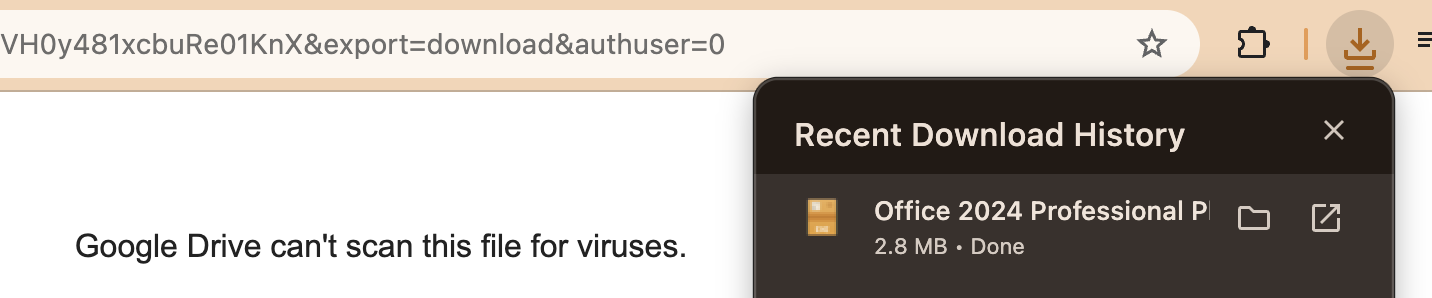
Open the delivery email that arrived with your order and use the download link in it. Save the file somewhere you can find it again — the Downloads folder is fine.
Use that link and nothing else. Installers mirrored on file-sharing sites and forum attachments are the most common cause of an install that appears to work and then fails validation days later.
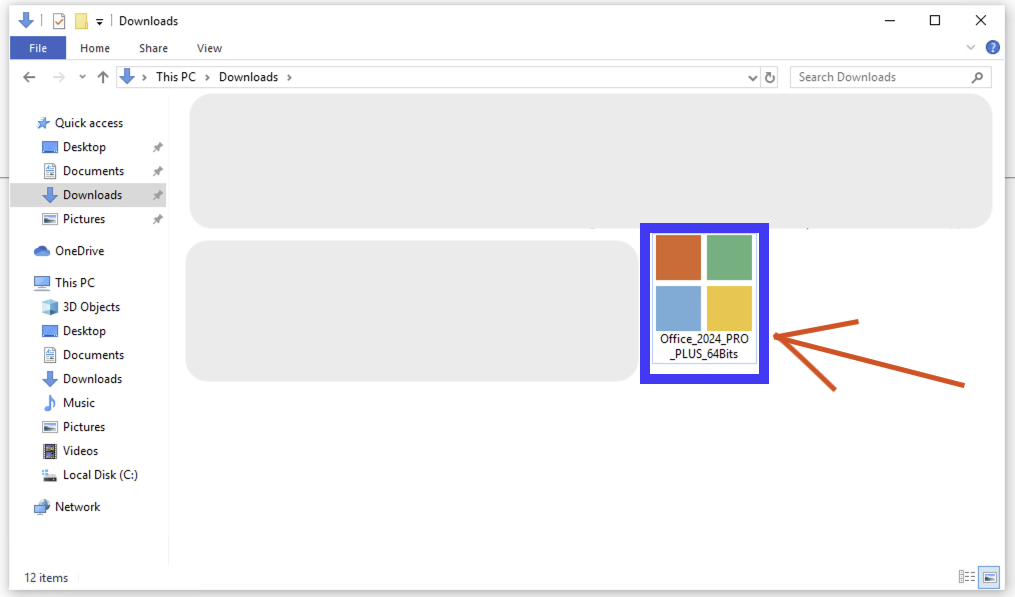
When the download finishes, right-click the file and choose Extract All to unpack it into its own folder. You cannot run the installer from inside the compressed archive.
Step 2 — Run the installation
Close every Office application first, including anything sitting in the system tray. A background Outlook process is a reliable way to end up with a half-finished install.
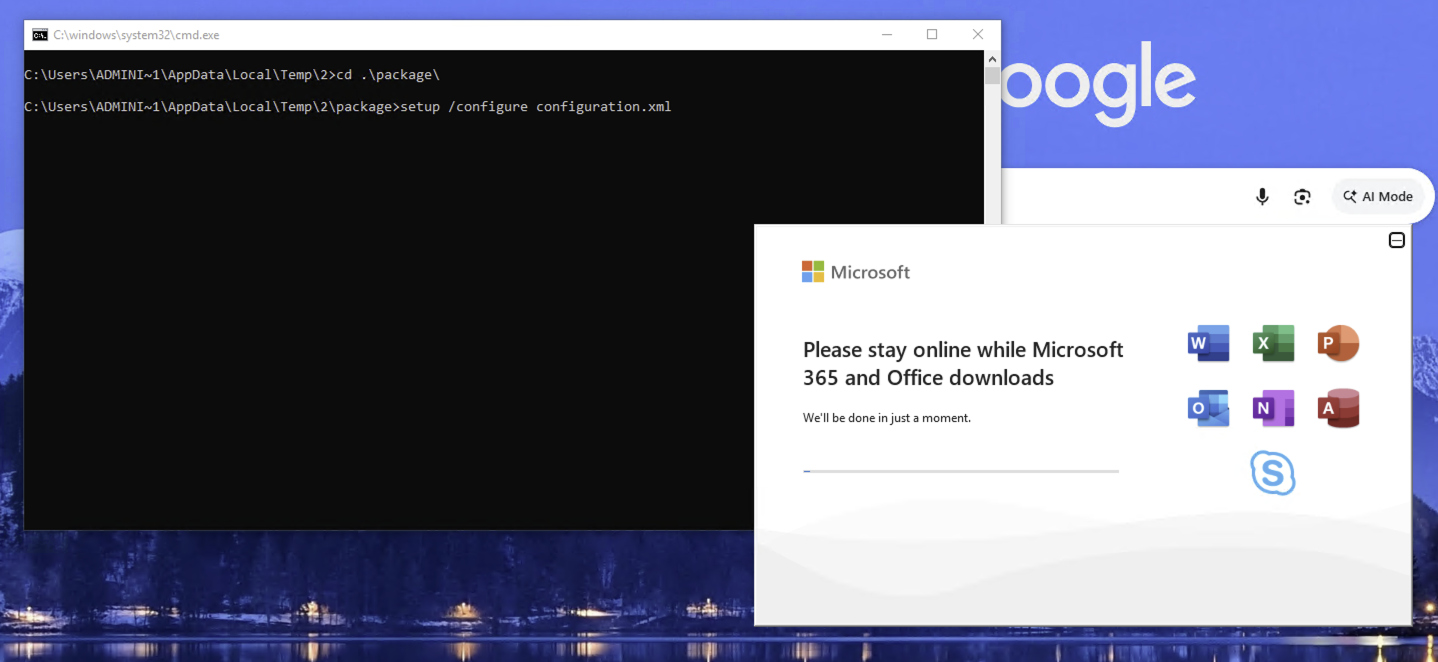
Open the extracted folder, right-click the setup file and choose Run as administrator. Windows will ask you to confirm. The installation starts on its own — there is nothing to configure.
Leave it alone while it works. Office streams its components down as it goes, so most of the download is happening now rather than when you fetched the file. On a slow connection this takes a while, and a progress bar that appears stuck near the end is usually the final registration step rather than a hang.
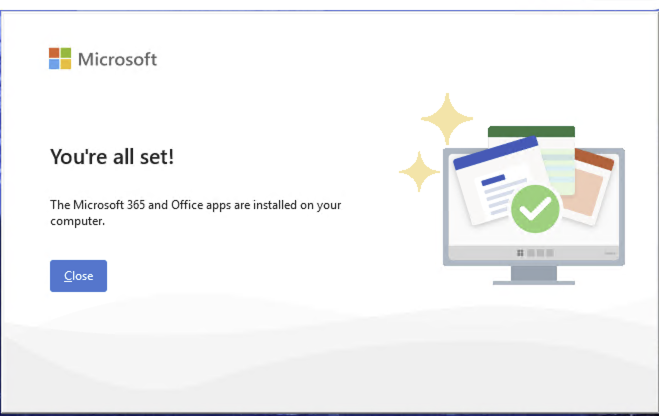
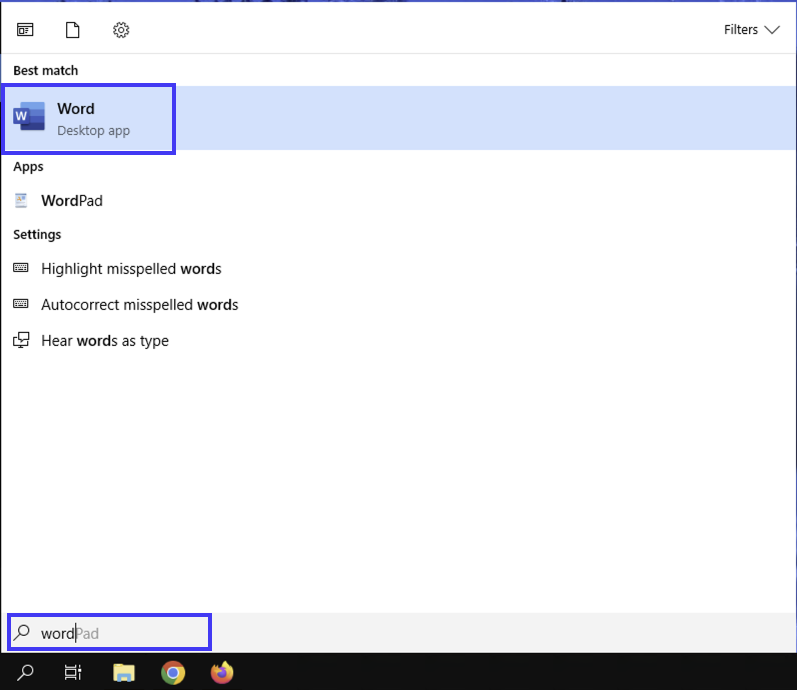
When it finishes, the applications appear in the Start menu. Open Word and leave it on screen.
Step 3 — Activate your copy
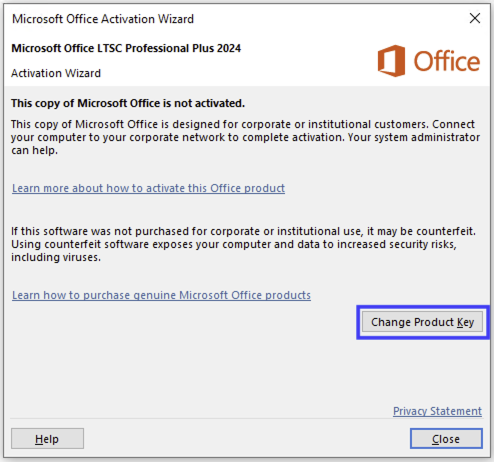
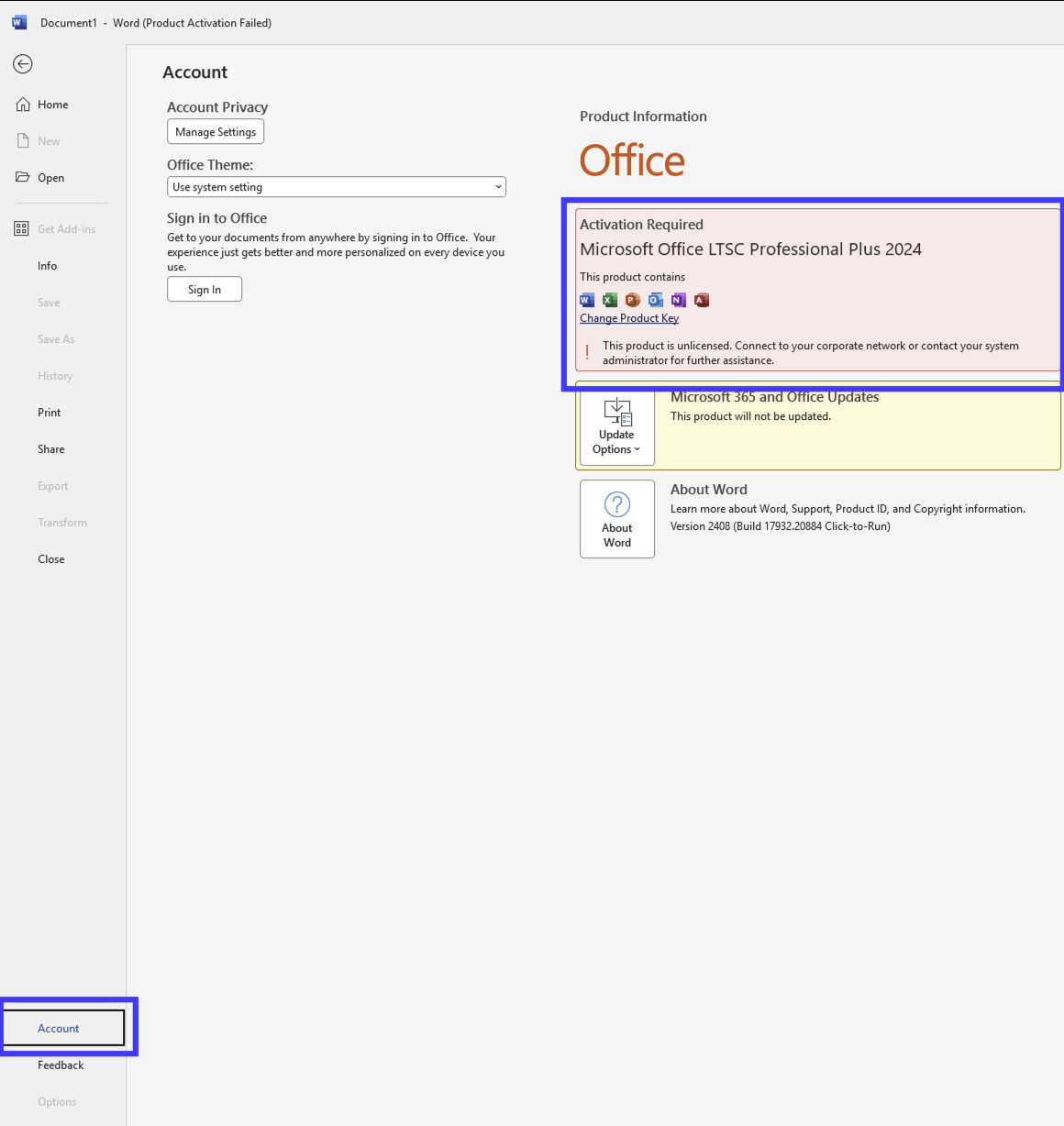
With an Office app open, a pop-up will appear asking you to activate the program. if not, go to File, then Account. Choose the option to change or enter a product key.
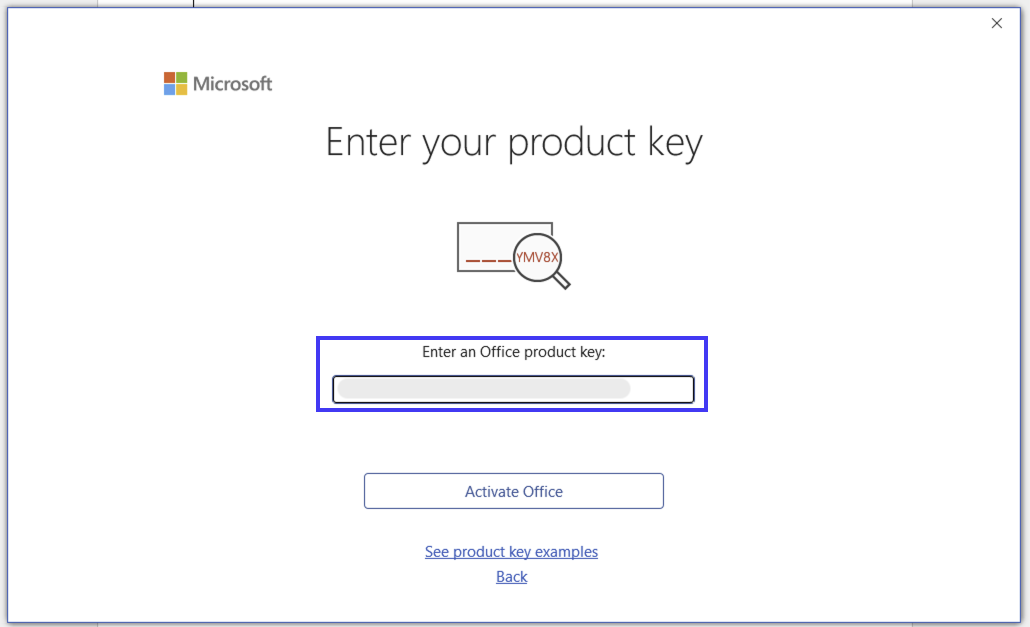
Paste the 25-character key from your delivery email into the box and confirm. Copy and paste it rather than typing — a single dropped character fails the whole string.
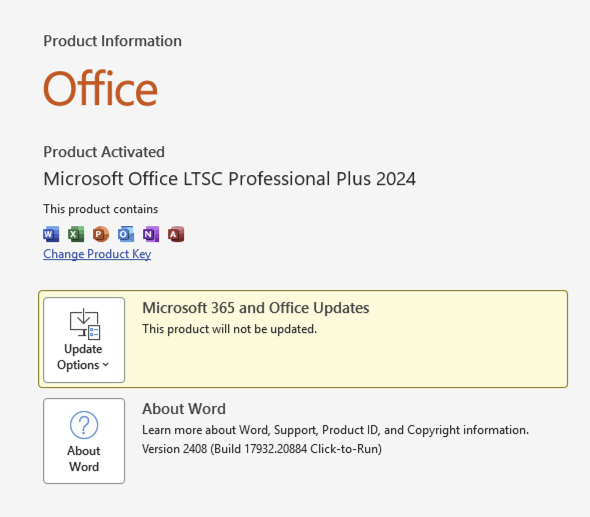
Close the application completely and open it again. Go back to File, then Account, and it should now report the product as activated.
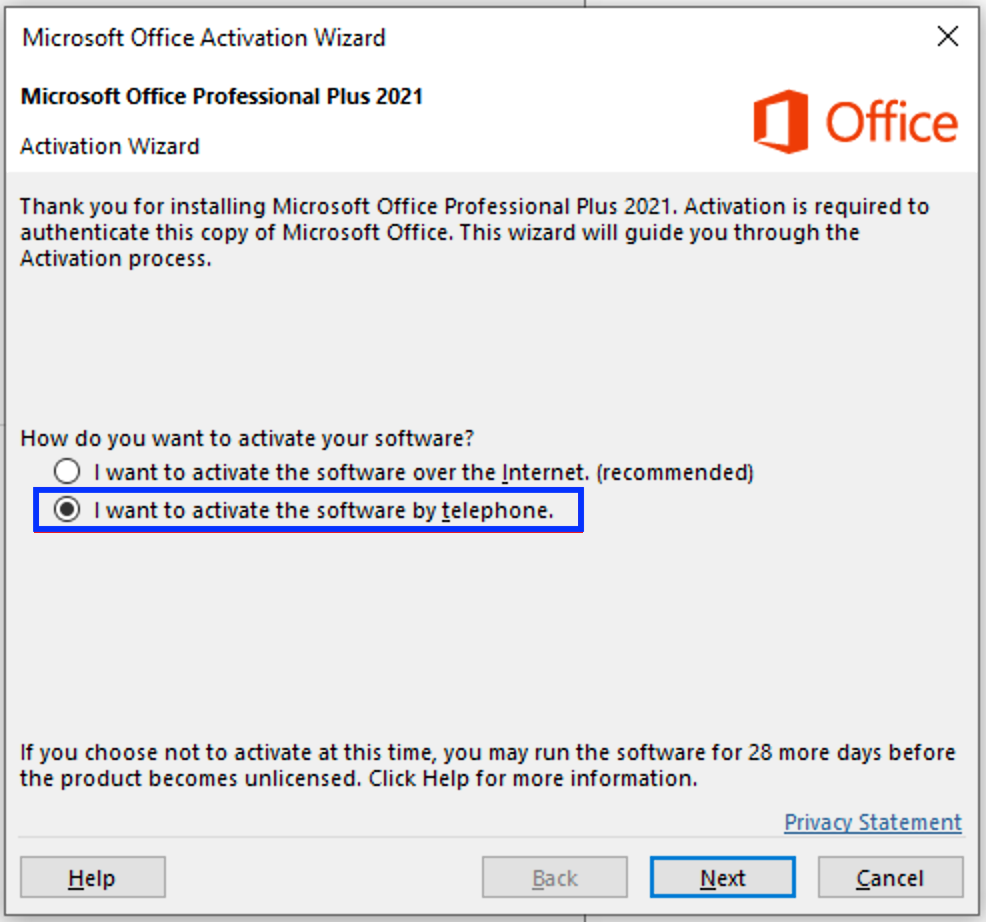
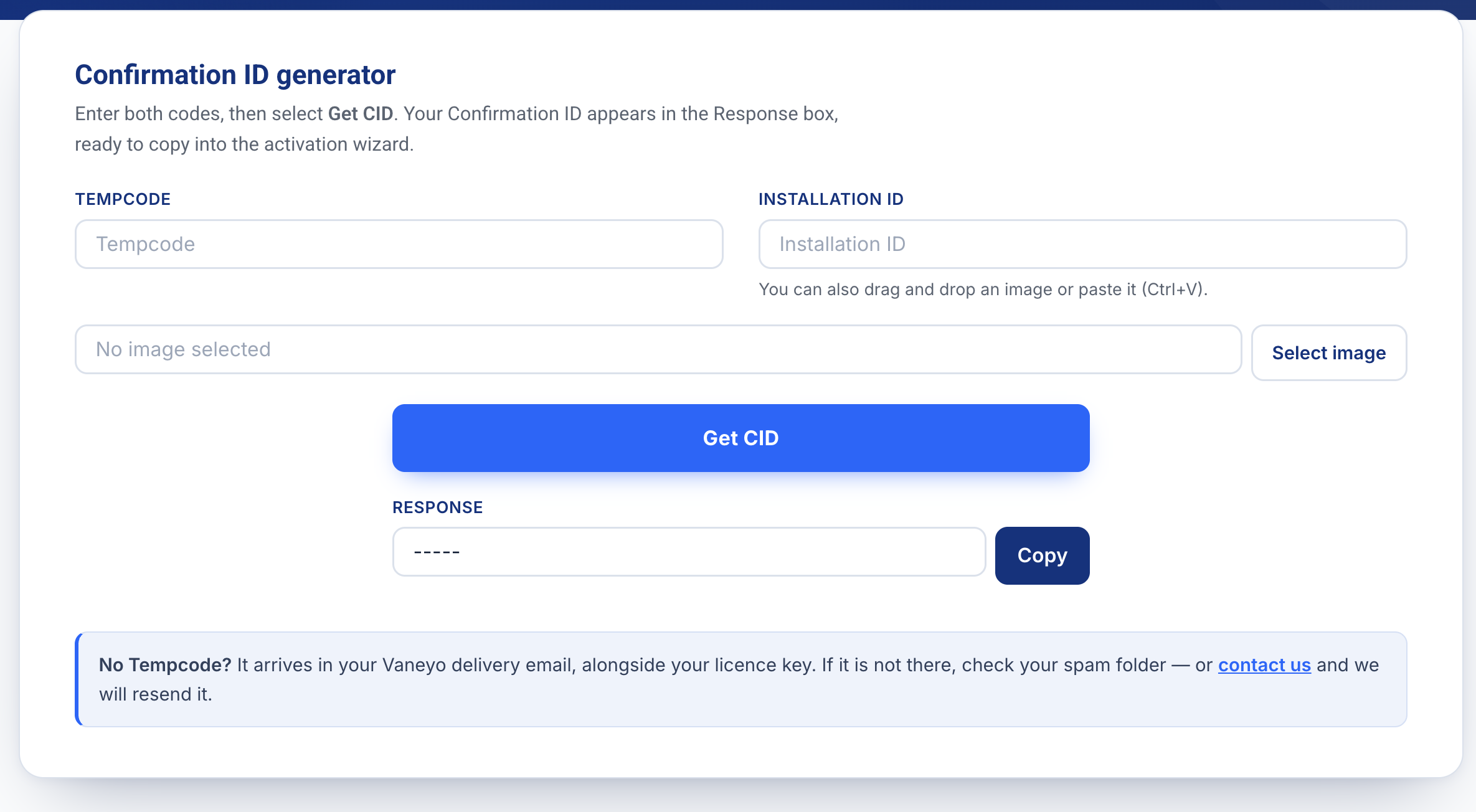
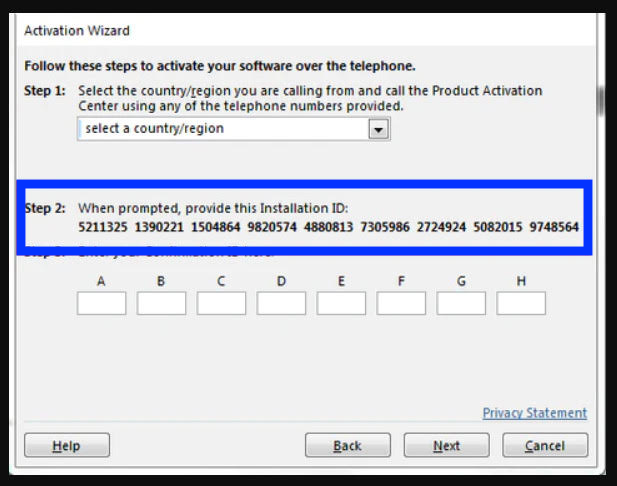
If activation does not go through, telephone activation is the fallback. It is a normal part of Office rather than a sign that anything is wrong with your licence. Office shows you an Installation ID — a long string of digits — and expects a Confirmation ID in return. The traditional method is to call a Microsoft activation line and read the numbers aloud, which is slow and easy to get wrong.
Step 4 — Start using Office
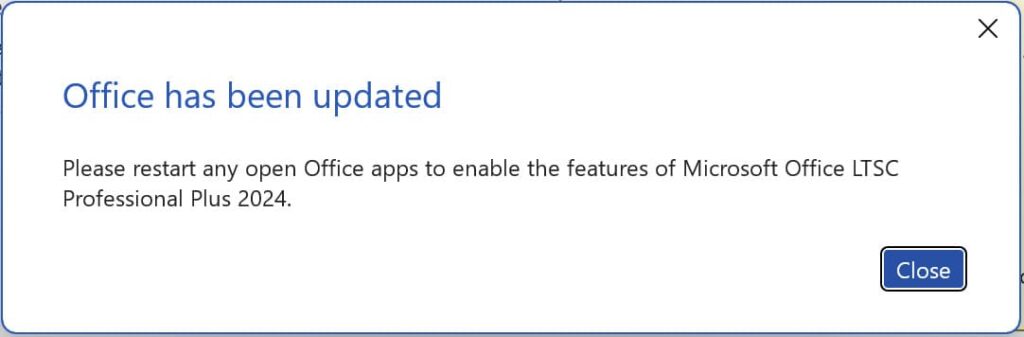
That is the whole process. The yellow activation banner across the top of the document window disappears, and Word, Excel, PowerPoint and Outlook are yours to use.
The licence is permanent — there is no renewal date and no subscription to keep current. Once activated, the suite runs offline; you only need a connection for the initial download and activation.
If you need a key for another machine, the Office 2024 Professional Plus keys are all delivered the same way, with the download link and activation instructions in the same email.
When activation does not go through
The key was mistyped. Still the most common cause by a wide margin. Copy and paste.
An older Office is still installed. Remove it, restart the machine, then try again. The restart matters — file associations do not fully release without one.
Architecture mismatch. If another Office product on the machine is 32-bit and you installed 64-bit, activation problems follow. All Office products on one device must match.
The Installation ID was transcribed wrongly. It is long and a single dropped digit fails. Submitting a screenshot beats typing it.
The hardware changed. A licence tied to the device it was first activated on will not simply move to a new motherboard. Some licence types travel with you; others do not. If you have replaced components and activation has started failing, check which type you hold before assuming the key is dead.
Advanced: install with the Office Deployment Tool
This section is for people comfortable with a command prompt, and for anyone setting up several machines. It is the method Microsoft documents, and it has one real advantage: the product key goes into a configuration file, so activation happens as part of the install rather than as a separate step afterwards.
Download the Office Deployment Tool free from Microsoft’s Download Center. Running the downloaded executable does not install Office — it extracts setup.exe and a sample configuration.xml. Replace the sample with the following, putting your own key in place of the placeholder:
Then open Command Prompt as an administrator, change to that folder, and run:
Leaving SourcePath out, as above, installs straight from Microsoft’s content network, which is what Microsoft recommends when the machine has a decent connection. If you need an offline copy first, run setup /download configuration.xml — and note that 32-bit and 64-bit have to be downloaded separately. Display Level="None" means the install runs silently with no window, so do not be alarmed when nothing appears to happen.
The full configuration reference is in Microsoft’s Office LTSC 2024 deployment documentation.
Questions people ask