
Microsoft Office 2021 Professional Plus: How to Download, Install and Activate
Three jobs in sequence — get the correct installer, run it cleanly, activate it. Here is the order that avoids the usual dead ends.
At a glance
- Reading time
- 7 minutes
- Works on
- Windows 10 & 11
- Builds
- 32-bit & 64-bit
Almost all the trouble people hit happens at the seams between those three steps — the wrong architecture gets downloaded, an old copy of Office is left in place, or activation stalls and the key gets blamed when the key is usually fine.
This guide takes the stages in order. It assumes you already hold a product key and want to get from a bare machine to a working copy of Word, Excel, PowerPoint and Outlook without guesswork. If you have been trying to download Microsoft Office 2021 Professional Plus and the official routes keep looping you back to subscription pages, start at the top and work down.
Before you start
Three things are worth settling before you download anything.
Check what Windows you are on. Office 2021 is supported on Windows 10 and Windows 11. On anything older the installer will stop rather than warn you halfway through.
Decide between 32-bit and 64-bit. Microsoft recommends the 64-bit build on any device with 4 GB of memory or more, which covers most machines sold in the last decade. The 32-bit build still exists for compatibility reasons — ageing add-ins, legacy macros, certain line-of-business tools that were never rebuilt. If you have no specific reason to choose 32-bit, take 64-bit. Microsoft’s own Office LTSC 2021 documentation covers the compatibility trade-offs if you need to make the case either way.
Remove any older Office first. This is the step people skip and regret. Two Office releases installed side by side on one PC will fight over file associations, and the conflict frequently surfaces later as an activation error that looks unrelated. Uninstall the previous version through Settings, then Apps, before you go further.
Finally, have your product key somewhere you can copy from. It is 25 characters in five blocks of five.
Step 1 — Download the installer
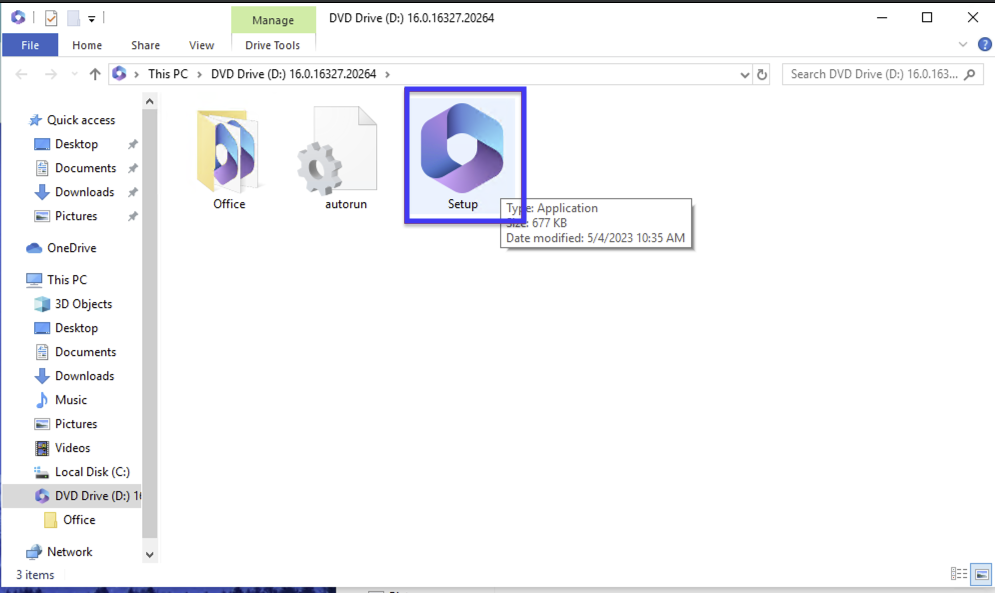
Office 2021 Professional Plus installs through Click-to-Run rather than the old Windows Installer, so what you download is a small setup file that pulls the rest down as it runs. You are not downloading a six-gigabyte disc image.
Two details matter here.
The first is the source. Use the download link supplied with your licence, or Microsoft’s own distribution. Installers mirrored on file-sharing sites and forum attachments are the single most common cause of an install that appears to work and then fails validation days later. If you bought one of the Office 2021 Professional Plus licences sold with a download link, that link is the one to use — it resolves to Microsoft’s servers rather than a third-party mirror.
The second is architecture. Pick the build you settled on above. Downloading 32-bit onto a 64-bit machine will not throw an error; it will simply install the weaker build, and you will not notice until Excel runs out of memory on a large workbook.
Once the file is on disk, the rest of the installation runs locally. You do not need to stay online for the install itself.
Step 2 — Run the installation
Close every Office application before you begin, including anything sitting in the system tray. The installer can usually work around an open Word window, but a background Outlook process is a reliable way to end up with a half-finished install.
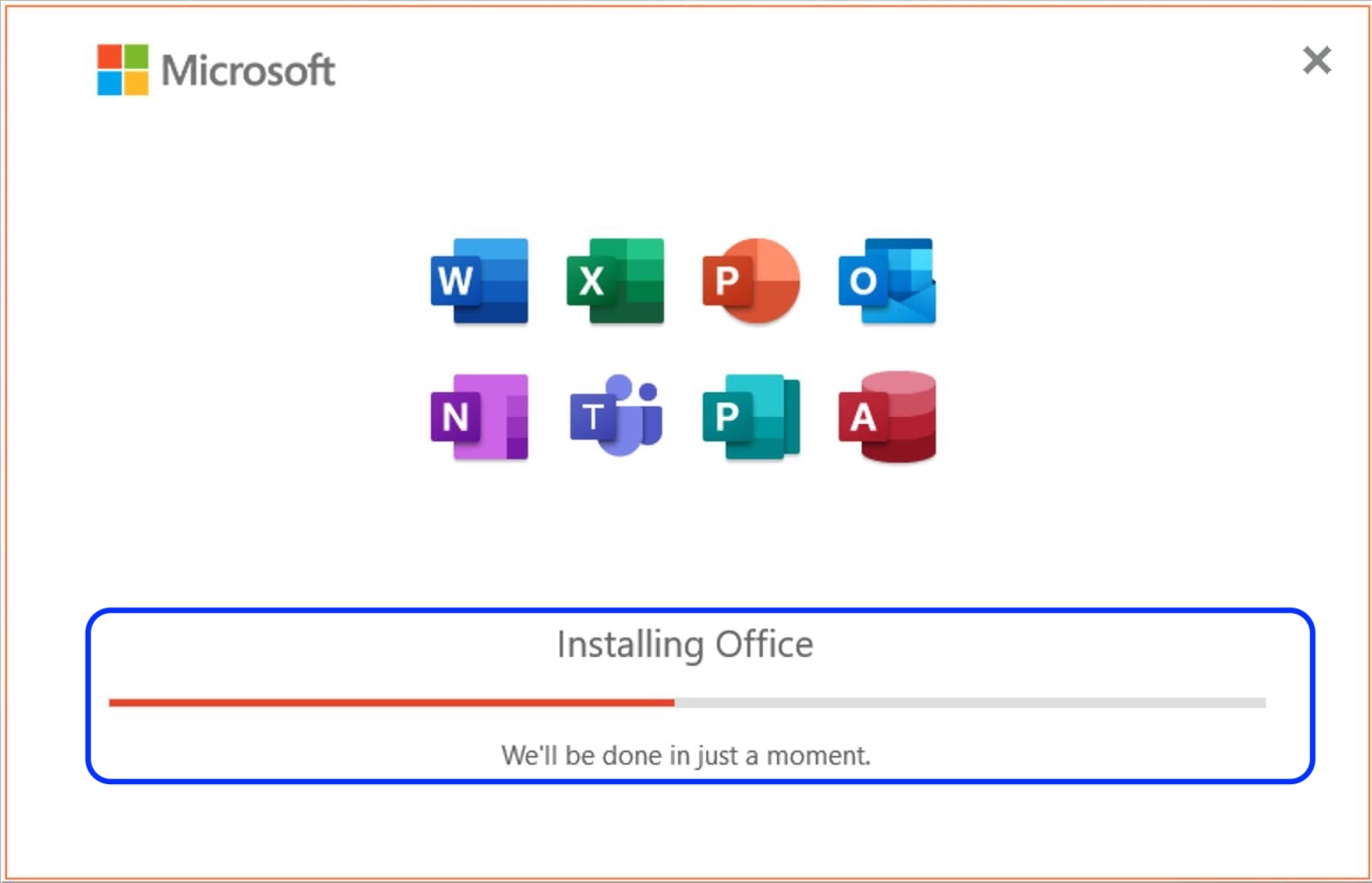
Run the setup file. There is very little to configure — Click-to-Run streams the components and shows a progress animation. On a reasonable connection it takes a few minutes; on a slow one it can take considerably longer, because the bulk of the download is happening now rather than when you fetched the setup file.
Do not interrupt it. If the progress bar appears to stall near the end, that is usually the final registration step rather than a hang. Give it a few minutes before you intervene.
When it finishes, open any one of the applications — Word is the usual choice — and leave it on screen. Office will now ask to be activated.
Step 3 — Activate Office 2021 Professional Plus
Activation is where the guide stops being generic, because there are two routes and most instructions only describe one.
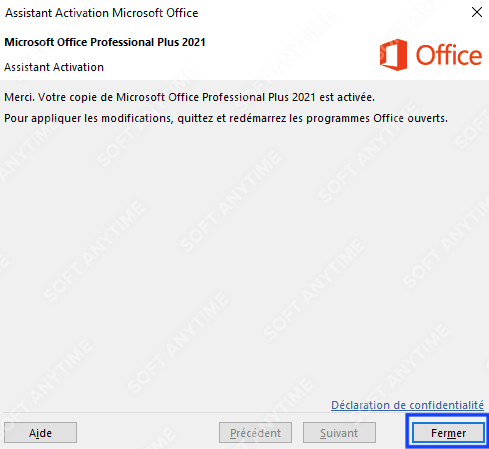
Online activation is the default. Office prompts for your product key, you paste the 25 characters, and it checks with Microsoft’s servers. If it succeeds, you are finished. Word will stop showing the activation banner and the suite is yours.
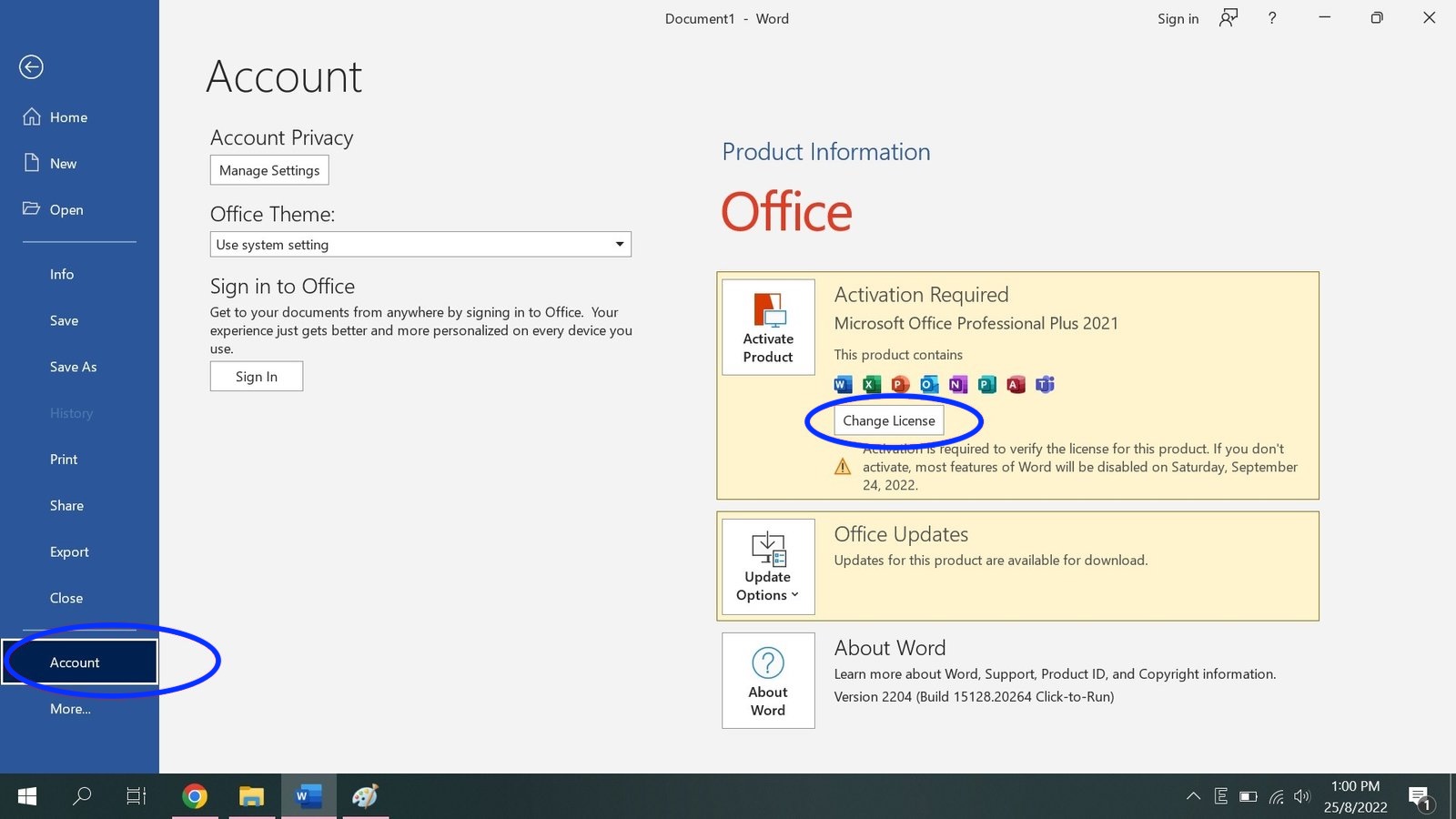
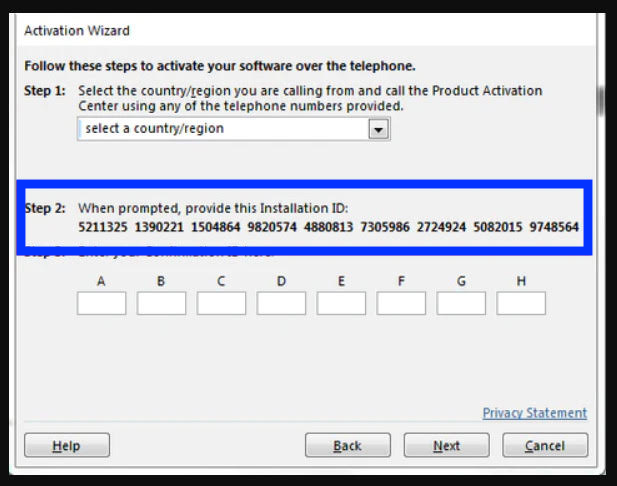
Telephone activation is the fallback, and it is a normal part of Office rather than a sign that something is wrong. Office shows you an Installation ID — a long string of digits — and expects a Confirmation ID in return. Traditionally you got that by calling a Microsoft activation line and reading the numbers aloud, which is slow and error-prone.
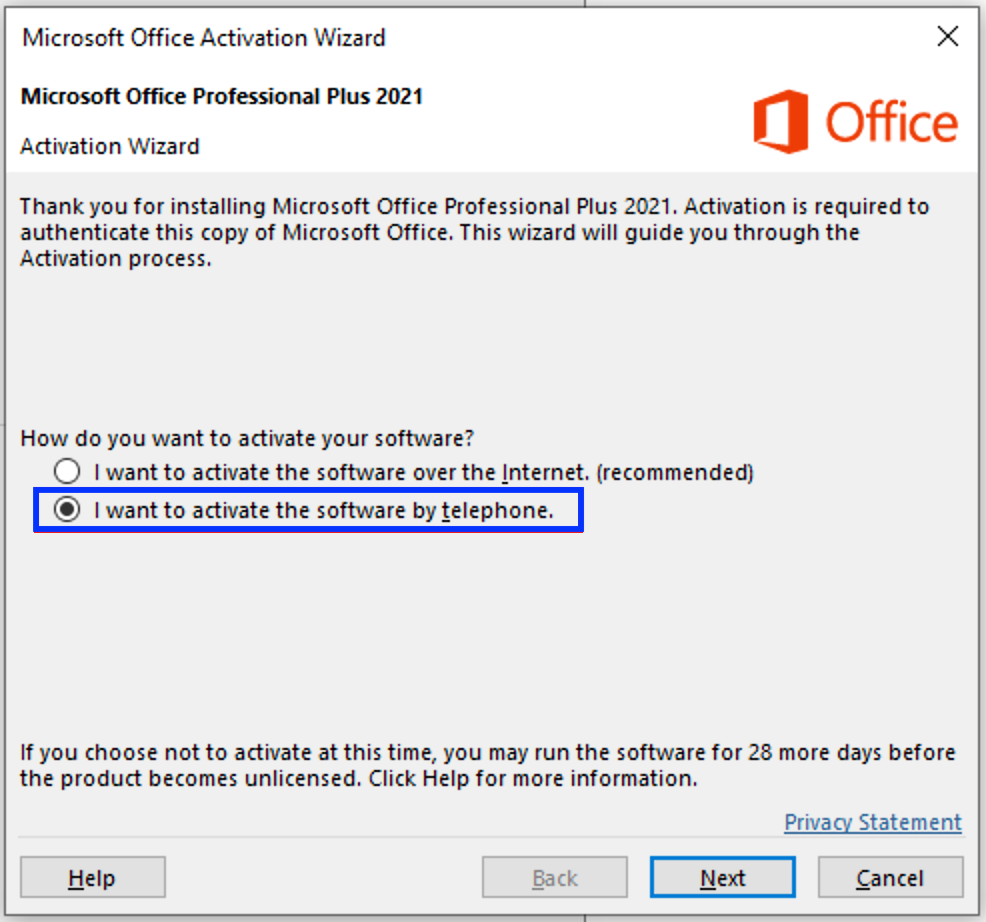
The wizard displays your Installation ID
The faster route to a Confirmation ID
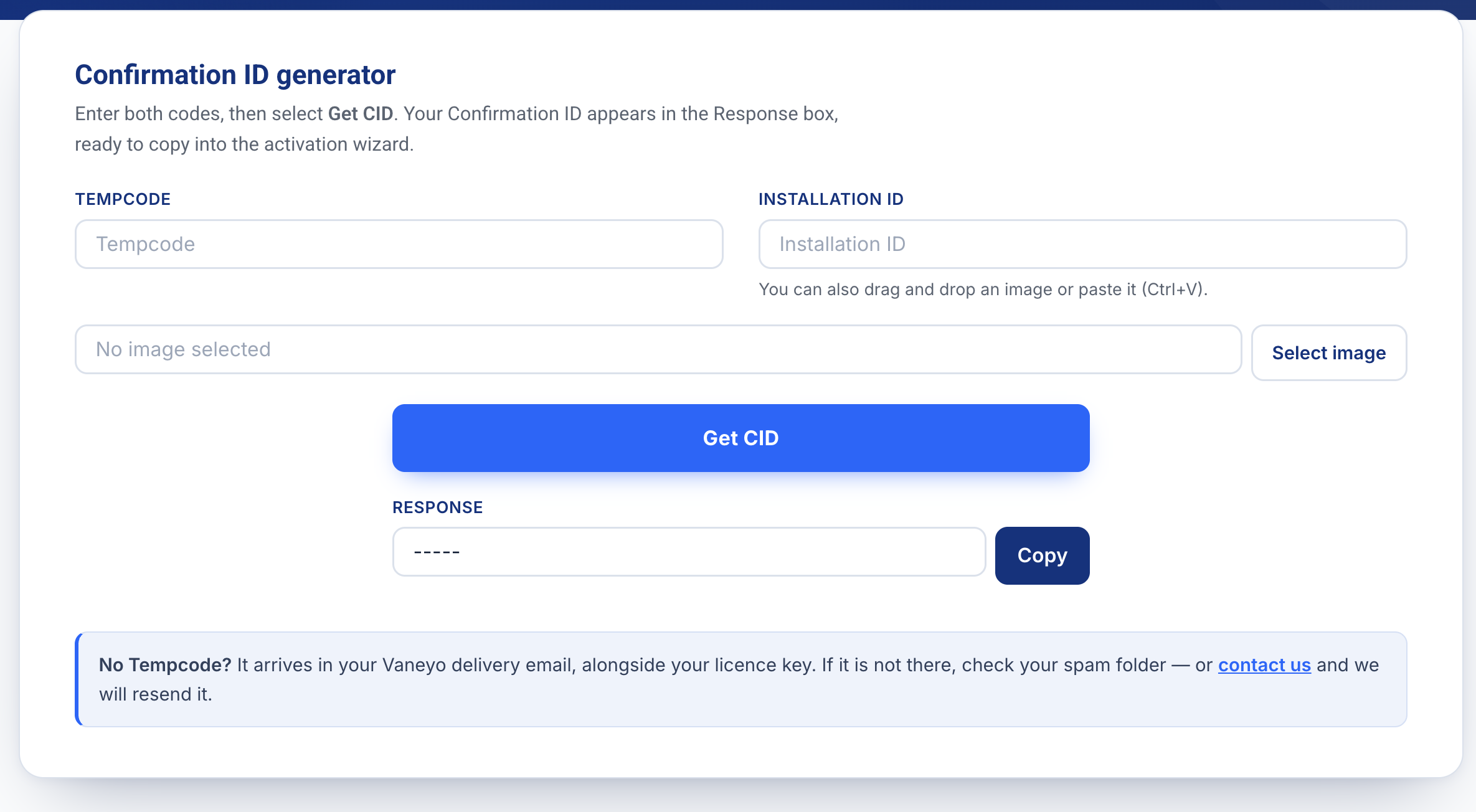
Vaneyo’s Confirmation ID tool takes your Installation ID and returns the Confirmation ID on screen in seconds — no call, no hold music, no transcribing digits over a bad line. You can type the Installation ID or drop in a screenshot of the activation wizard and let it read the number for you. Paste the result into Step 3 of the wizard and Office activates.
Which route you end up on is not something you choose. Office decides, based on how the key was issued and what the machine looks like to Microsoft’s servers. Being sent down the telephone path says nothing about whether your licence is genuine.
When activation does not go through
A handful of causes account for nearly every failure.
The key was mistyped. The most common problem by a wide margin. A single dropped character fails the whole string. Copy and paste rather than typing.
An older Office is still installed. If you skipped the uninstall step, go back and do it, then restart the machine before trying again. A reboot matters here; the file associations do not fully release until it happens.
The Installation ID was transcribed incorrectly. It is a long number and it is easy to drop a digit. This is exactly why submitting a screenshot beats typing it out.
The hardware changed. This one is worth understanding properly. A licence that is tied to the device it was first activated on will not simply move to a new motherboard or a rebuilt machine. Some licence types travel with you and can be reinstalled freely; others cannot. If you have replaced components and activation has started failing, that is the first thing to check with whoever supplied the licence, rather than assuming the key has expired.
You are offline. Online activation needs a connection. Installation does not, which is why an install can complete perfectly on a disconnected machine and then refuse to activate.
Questions people ask
Can I install Office 2021 Professional Plus on more than one computer?
It depends entirely on the licence, not on the software. A standard key covers one device. Multi-device licences exist and are issued differently. Check what you bought rather than assuming.
Do I need a Microsoft account?
Not for the installation itself. Some licence types are bound to an email address at activation, and those do need the account signed in. Most are not.
Will my old .docx and .xlsx files open?
Yes. Office 2021 uses the same file formats as 2016, 2019 and Microsoft 365, and files move in both directions without conversion.
Is Office 2021 Professional Plus the same as Microsoft 365?
No. Microsoft 365 is a subscription that updates continuously and stops working if the subscription lapses. Office 2021 is a fixed release — the feature set you install is the feature set you keep.
How long does the whole process take?
On a decent connection, fifteen to twenty minutes from download to activated. Telephone activation adds a minute or two if you use a tool to fetch the Confirmation ID, and considerably longer if you call.
A note on sequence
If you take one thing from this guide, make it the order. Uninstall the old version, choose the right architecture, install, then activate. Most of the failures described above are not really activation problems at all — they are download or installation problems that only become visible at the activation step, by which point the obvious thing to blame is the key.
Need a key for Office 2021 Professional Plus?
Vaneyo supplies genuine Microsoft licence keys by email, with the official download link and activation instructions in the same message. If you worked through this guide and still need a licence, the single-device option is below.